The AI Button Problem
If you have purchased a smartphone recently, there is a good chance you’ve been greeted by a dedicated physical key designed specifically to summon an AI assistant. From the infamous Bixby button on the early Samsung Galaxy S-series to modern iterations on devices from Motorola, Nothing, and OnePlus, these buttons have historically met with a lukewarm reception. Often, they are positioned exactly where your fingers naturally rest, leading to a constant stream of accidental triggers.
For many, the instinct is to ignore these buttons or attempt to disable them entirely. However, treating them as a pure nuisance might be a mistake. As mobile software matures, these hardware keys are increasingly becoming prime real estate for power users looking to streamline their daily tasks.
Reclaiming Your Hardware
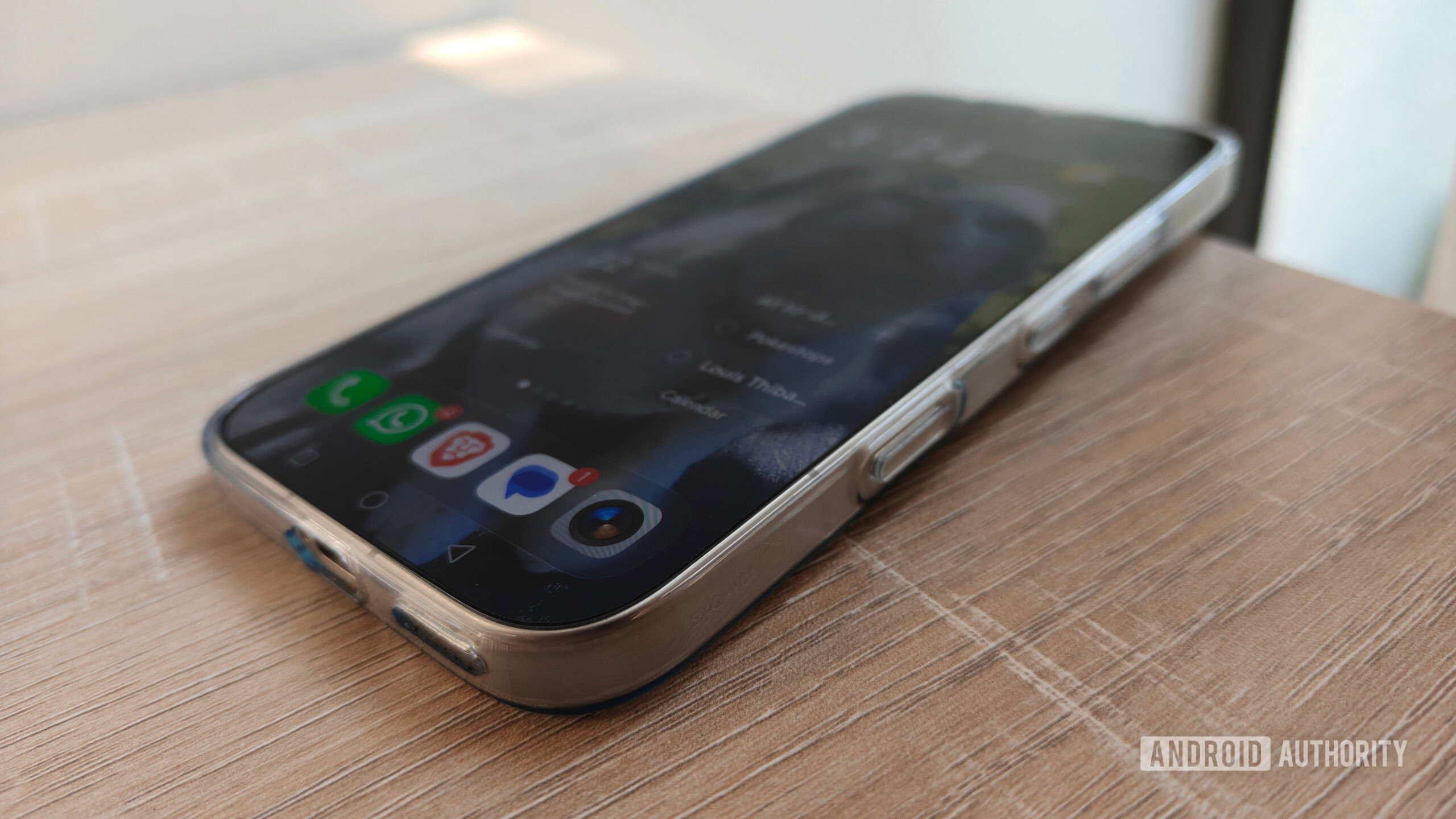
Instead of viewing these buttons as forced marketing tools, consider them programmable macro keys. By remapping your device's AI button, you can transform it from an unwanted digital assistant trigger into a shortcut for the apps or actions you actually use, such as launching the camera, toggling your flashlight, or opening a payment app.
- Check manufacturer settings: Many modern Android skins include a dedicated menu in the 'Advanced Features' or 'Gestures' section of the Settings app to change button behavior.
- Use third-party remappers: If your device does not offer native customization, third-party software can often bridge the gap, though results may vary based on your Android version.
- Identify the intent: Most hardware buttons act as 'intent' triggers, which can often be redirected to launch specific activities rather than just the default AI assistant.
- Minimize accidents: If you can't fully remap the button, check for settings that require a 'double press' or 'long press' to trigger, which effectively prevents those frustrating accidental activations in your pocket.
I was ready to disable my AI button until I realized how much it could actually do.
— Android Authority
The Future of Physical Assistants
While industry trends suggest manufacturers are doubling down on dedicated AI hardware, user feedback remains mixed. The key to a better experience lies in flexibility. If companies want these buttons to remain on future devices, they must prioritize user control, allowing us to decide whether that key serves an AI, a camera, or a silent toggle.